Many people prefer to watch movies, shows, and sports on a bigger screen along with high quality. For them, DeepCine for Smart TV is the perfect option because this provides you with these amazing features. The content you watch through this app doesn’t need any exclusive access.
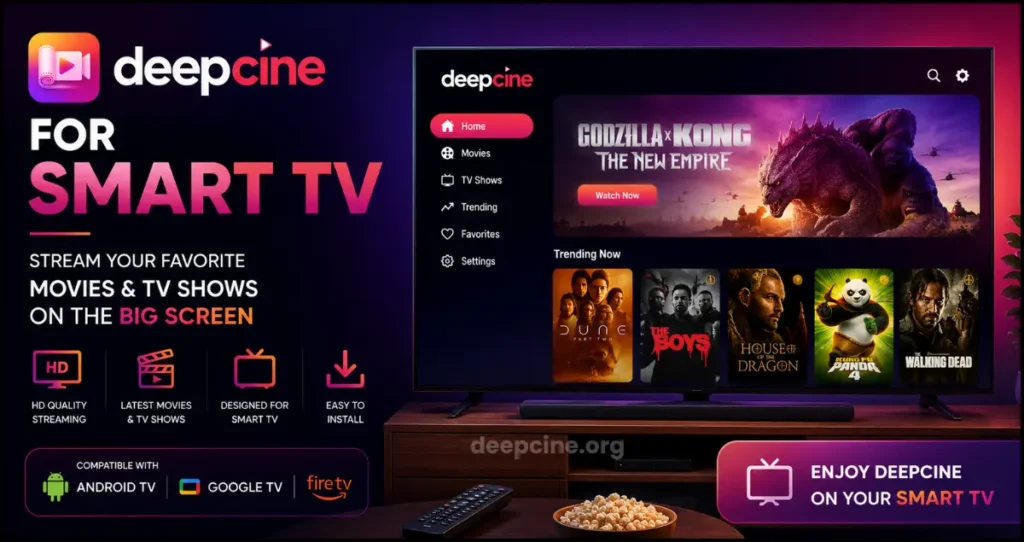
Nowadays, it is getting popular, and the reason for its popularity is that all the content, like movies, live streaming, and others, is free. This way, you can make your time enjoyable on a bigger screen.
If you also want to know how to download and use DeepCine for Smart TV from our website, then this article is very informative for you. Here you get the detailed information about it, so get ready to know about this in detail.
Is DeepCine Available for Smart TV?
A lot of people are confused that it is possible to use the DeepCine app on Smart TV. If you are also in them, then don’t worry because it is possible. You can easily use it on different Smart TV brands like Samsung, LG, Sony, and Android-based TVs.
The process of downloading the DeepCine app on the Smart TV is different because it is not available on official app stores like Google Play or Samsung Smart Hub. To install it, you will need to download the APK file and sideload it manually. In the below section we provide you the information about it.
How to Download DeepCine for Smart TV?
You can easily download DeepCine for Smart TV you just have to know the right process. Go to our website and find the latest version of the DeepCine APK file. This is fully safe and secure. All this process is explained in steps in the below points:
Download via Smart TV Browser:
- First, open the browser on your Smart TV.
- Then visit our official website and go to the download section.
- Click Download DeepCine APK to save the file.
Download on PC and Transfer via USB:
- On your computer, visit our website.
- Download the latest DeepCine APK for Smart TV.
- Transfer the downloaded APK file to a USB drive.
How to Install DeepCine on Smart TV?
Installing DeepCine on your Smart TV allows you to access endless content on a large screen. In the following section, you get the details about how to install it using a USB drive.
Using USB Drive
This method is best if your Smart TV has no browser or Play Store.
- Use your PC to download the APK from our official website.
- Save the APK to a USB drive.
- On your Smart TV, open Settings.
- Select Security and Restrictions.
- Enable Unknown Sources to allow third-party apps.
- Insert the USB drive into the TV’s USB port.
- Open the File Manager on your Smart TV.
- Select the DeepCine APK file from the USB.
- Click Install and confirm any permission requests.
- Find DeepCine in the Apps section of your Smart TV.
- Open the app and start streaming.
Key Features of Deep Cine for Smart TV
Optimized Interface for Smart TVs
Deep Cine is liked by many people to use on Smart TV because it is easy to use; all the options are easy to reach with the help of a remote. So you can easily watch your favourite content and change it any time you want. The layout is clear, with sections for movies, series, and live channels.
High-Quality Streaming Options
As you are using DeepCine on a bigger screen, if the content is not high-quality results, then it is useless. That is why DeepCine provides you with the best Full HD and 4K streaming. You have to use a better connection because this quality is automatically adjusted according to your internet speed.
Built-in Subtitle Support
Sometimes, people watch international movies, TV shows or other content. DeepCine makes it easier to understand this content by providing them the option of a Subtitle. This option is available for most of the content. You can also adjust the size of subtitles according to your preference.
Continuous Content Updates
New movies, shows, and live events are released on a daily basis. That is why DeepCine updated its content regularly to provide you with the latest content. The app automatically refreshes the catalog to show newly added content.
Multi-Category Entertainment
Another amazing thing about DeepCine is that it provides you a different types of content like movies, series, sports events, and also for kids. Usually, all these have different sections, so you can quickly select according to your liking.
No Ads During Playback
One of the most liked features of DeepCine is that here you dont have to see any ads. Like other such apps, those show annoying ads that can disturb you while watching DeepCine provides you with ad free environment.
Compatible with Multiple Smart TV Brands
No matter whether you are using the DeepCine app on LG, Sony, or Android-based TVs, it works perfectly. The process for installation is simple, with clear steps for each brand.
Deepcine Smart TV Requirements
Before installing Deepcine on your Smart TV, it is important to ensure that your device meets the minimum requirements for smooth performance. Checking compatibility beforehand can help avoid installation errors, app crashes, and streaming issues.
Supported Android Versions
DeepCine is designed to work on most Android-based Smart TVs and streaming devices. For the best experience, users should have Android TV 7.0 or higher installed on their device. While some older versions may still run the application, newer Android versions generally provide better stability, improved security, and enhanced performance.
Compatible devices may include:
- Android TV
- Google TV
- Amazon Fire TV devices
- Android TV Boxes
- Smart projectors running Android OS
Keeping your TV software updated can also improve compatibility with the latest Deepcine releases.
Storage Requirements
Deepcine does not require a large amount of storage space, but users should ensure that sufficient free storage is available before installation. The APK file itself is relatively lightweight, yet additional space may be needed for app data, cache files, and future updates.
For optimal performance, it is recommended to have:
- At least 100 MB of free storage for installation
- Additional space for cache and temporary files
- Regular storage cleanup to maintain smooth operation
If your Smart TV is running low on storage, consider removing unused applications or clearing cached data before installing Deepcine.
Recommended Internet Speed
A stable internet connection is essential for uninterrupted streaming. The quality of your viewing experience depends largely on your network speed and connection stability.
Recommended internet speeds:
- 5 Mbps for standard HD streaming
- 10 Mbps or higher for Full HD content
- 25 Mbps or higher for multiple devices streaming simultaneously
For the best results, connect your Smart TV to a reliable Wi-Fi network or use an Ethernet cable whenever possible. A faster and more stable connection can help reduce buffering, improve video quality, and provide a smoother entertainment experience.
Common Deepcine Smart TV Installation Issues and Fixes
While installing Deepcine on a Smart TV is usually straightforward, some users may occasionally experience technical issues. Fortunately, most problems can be resolved quickly with a few simple troubleshooting steps. Below are the most common Deepcine Smart TV installation and streaming issues along with practical solutions.
APK Not Installing
One of the most common issues users face is the APK file failing to install on their Smart TV. This can happen for several reasons, including incompatible Android versions, insufficient storage space, or disabled installation permissions.
To fix this issue:
- Enable “Install Unknown Apps” or “Unknown Sources” in your TV settings.
- Ensure that your Smart TV has enough free storage available.
- Download the latest Deepcine APK version from a trusted source.
- Restart your Smart TV and try the installation again.
- Verify that your device supports Android applications.
Installing the latest version often resolves compatibility-related installation errors.
App Crashing on Launch
If Deepcine closes immediately after opening or crashes during startup, the issue may be related to corrupted app data, outdated software, or device compatibility problems.
Try the following solutions:
- Clear the app cache and data from TV settings.
- Restart your Smart TV.
- Reinstall the latest Deepcine APK.
- Update your Android TV or Google TV software.
- Close background applications that may be consuming system resources.
Keeping both the app and device software updated can significantly improve stability and performance.
Black Screen Problems
Some users may encounter a black screen when launching Deepcine or during video playback. This issue is often caused by network interruptions, outdated app versions, or temporary system glitches.
To resolve black screen issues:
- Check your internet connection.
- Restart the application.
- Update to the latest Deepcine version.
- Reboot your Smart TV.
- Clear the application’s cache files.
A stable internet connection and updated software can help prevent black screen errors while streaming.
Buffering and Streaming Issues
Buffering can affect the overall viewing experience, especially when watching movies or TV shows in high quality. Slow internet speeds and unstable network connections are the most common causes.
To reduce buffering and improve streaming performance:
- Use a high-speed Wi-Fi connection or Ethernet cable.
- Close other devices that are consuming bandwidth.
- Restart your router and Smart TV.
- Lower the streaming quality if your connection is slow.
- Ensure your internet speed meets the recommended requirements for HD streaming.
For the best Deepcine Smart TV experience, a stable and reliable internet connection is strongly recommended.
By following these troubleshooting methods, most Deepcine Smart TV installation and streaming problems can be resolved quickly, allowing users to enjoy uninterrupted entertainment on a larger screen.
Conclusion
DeepCine For Smart TV is the way to enjoy unlimited streaming, movies and other amazing content on a bigger screen. It is easy to use because all options are clearly visible on the screen. In addition, it gets updated daily so you can watch new content. All the content you watch here is of high quality. You can easily download it from our website with the help of the easy steps mentioned in this article and make your time enjoyable.
FAQs
Is DeepCine free to use on Smart TV?
Yes, downloading DeepCine for Smart TV is totally free. You can enjoy movies, TV shows and other content here.
Can I download DeepCine APK directly from this website?
Yes, You can easily download and install the latest version of DeepCine APK for Smart TV from your website. All this process is fully safe and secure, so you don’t have to worry about it.
Does DeepCine support 4K streaming on Smart TVs?
Many people like to watch content on DeepCine TV because it can provide you with full HD and 4K streaming for compatible Smart TVs. So you can enjoy high-quality content on a bigger screen and make your time enjoyable.
How often is the DeepCine content library updated?
DeepCine TV gets updated on a regular basis to provide you with all the newly released content like movies, TV shows, and live events.
Can I cast Deep Cine from my phone to my Smart TV?
Yes, you can cast a screen from your phone to your smart TV. This feature is available on DeepCine. For this, you just have to use Chromecast or similar casting features.